Adding and Customizing KPIs
A main feature of Umbria is dashboards with Key Performance Indicators (KPIs). Dashboards display many employee related KPIs. Prior to Umbria 2.1, the list of KPIs were limited to a predetermined set, but now it is possible to introduce new KPIs or tweak the calculation of existing KPIs based on customer requirements. The KPIs in Umbria are created with Extensible Markup Language (XML) code. System Administrators familiar with XML coding can create and modify KPIs within Umbria without the need to contact Prosperoware for implementation.
Tip: To change existing dashboards or to add new ones, refer to the instructions on the Dashboard Modifications page.
Tip: To understand more on Update Statistics and its relation to KPIs, refer to the Update Statistics page.
Umbria dashboards are based on XML views, and it is possible to calculate KPI values directly inside a view; however, performance can be impacted by the number of SQL queries required for these calculations. To help alleviate performance issues, the EmployeeStatistics table was introduced. This table is populated during the Update Statistics process, which occurs after import, and holds many KPIs.
Customizing KPIs
Some customers wish to slightly change formulas or add new KPIs of their own. To enable this scenario, the column DataJSON is added to the EmployeeStatistics table to store all dynamic KPI values. Values in this column are populated by executing scripts found in the Caliban.Front\Default\View\Precalculate\EmployeeStatistics.xml file. This file should be tweaked to fulfill customer requirements.
Scripts in the file look like this:
Original Query:
SELECT SUM(TM.EnteredHours) AS EnteredHours
FROM Caliban.Matter M
JOIN Caliban.TimeMonth TM ON M.MatterId = TM.MatterId
WHERE [Month] = MONTH(GETDATE())
  AND [Year] = Year(GETDATE())
  AND M.IsDeleted = 0
  AND PersonId = @PersonId
Modified Query:
SELECT SUM(TM.EnteredHours) AS EnteredHours
FROM Caliban.Matter M
JOIN Caliban.TimeMonth TM ON M.MatterId = TM.MatterId
WHERE [Year] = Year(GETDATE())
  AND M.IsDeleted = 0
  AND PersonId = @PersonId
Resulting JSON looks like this:
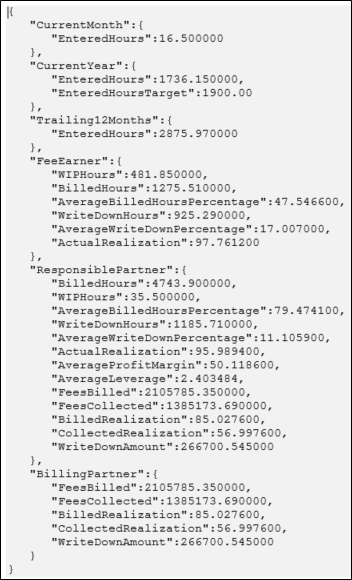
After statistics data is computed, it’s possible to use it in dashboard widgets, like in the following snippet from PartnerPerformance.xml:

Adding New KPIs
Complete the steps below to add a KPI to Update Statistics and calculate the values for the KPI.
- Add a script entry for the new KPI in the EmployeeStatistics.xml file.
- Open EmployeeStatistics.xml from the File Customization node in the Admin Panel and expanding folders in the path: Default > View > PreCalculate.
- Add the script. An example of the script to add for the total of partner hours for the logged-in user for the current month is:
SELECT SUM(TM.PartnerHours) as PartnerHours FROM Caliban.Matter M JOIN Caliban.TimeMonth TM ON M.MatterId = TM.MatterId WHERE [Month] = MONTH(GETDATE()) AND [Year] = Year(GETDATE()) AND M.IsDeleted = 0 AND PersonId = @PersonId - Save the file and run Update Statistics. In the EmployeeStatistic table, the JSON field contains a value for the new KPI for each person.
Tip: You can also open the EmployeeStatistics.xml file using Visual Studio, Notepad++, or another editor (Visual Studio is recommended for debugging and for best usability) from the program files path: C:\Program Files\Prosperoware.Umbria\Default\View\Precalculate.
- Add a new KPI sidebar section where you want the KPI to show up in the dashboard.
- Open the dashboard XML file, e.g., PartnerDashboard.xml, from the File Customization node in the Admin Panel, or in Visual Studio or another editor (Visual Studio is recommended) via the Program Files folder. Location of the dashboards: Default > View > Home.
- Add the script. An example of format:
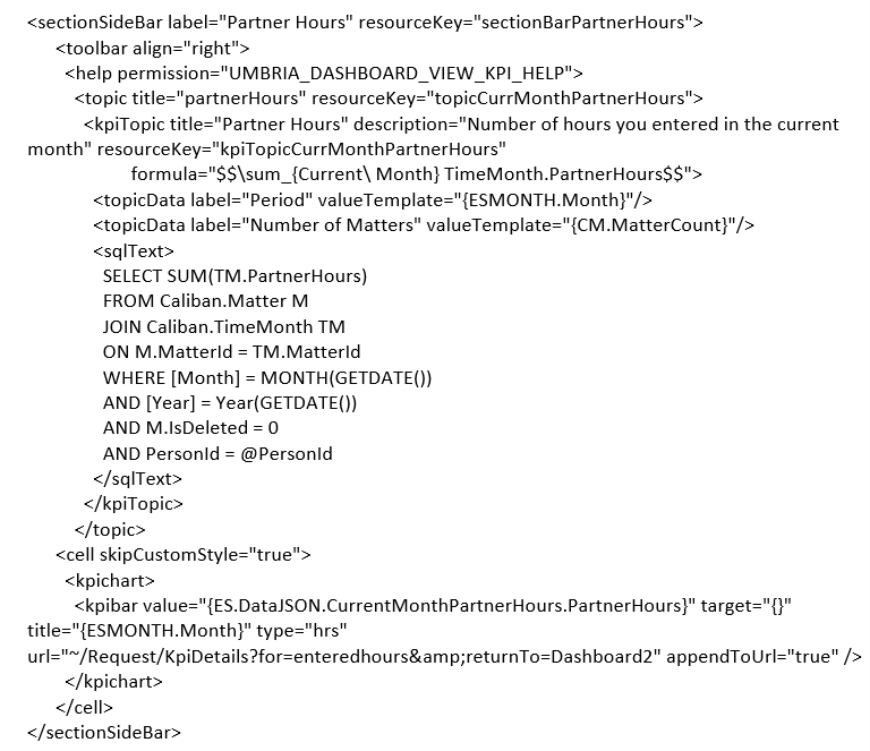
- Save the changes and refresh the dashboard. It is recommended that you press Ctrl + F5 to refresh the browser cache as well. The new KPI should now appear.
Helpful Notes on Formatting XML

- <navigation> section is for navigation through the page and the KPI sidebar.
- <content> section is for the page content in the other section of the page (for example the Clients/Matter I am Managing sections).
- <read> section is for SQL read statements.
- <write> is for SQL write sections (used for wizards mainly).
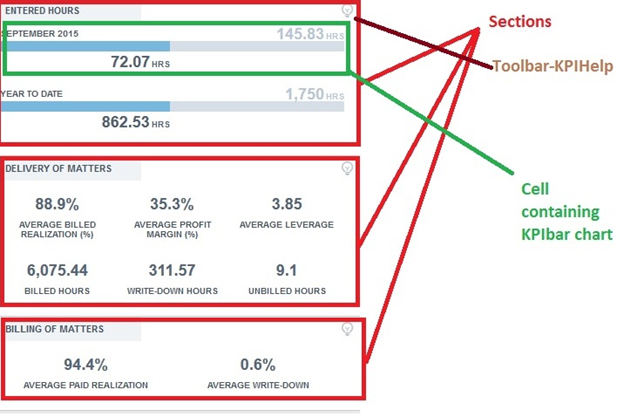
- <SectionSidebar> is for a section of the sidebar (on the Partner Dashboard there are three sections).
- <KPI topic> is for the KPI help feature.
- <cell> is for each KPI.
- <kpichart> are for any charts for displaying the KPI. Chart types currently are <kpibar/> (Bar chart), <kpicompact/> (Trending indicator), and <kpiarc/> (Arc donut chart).
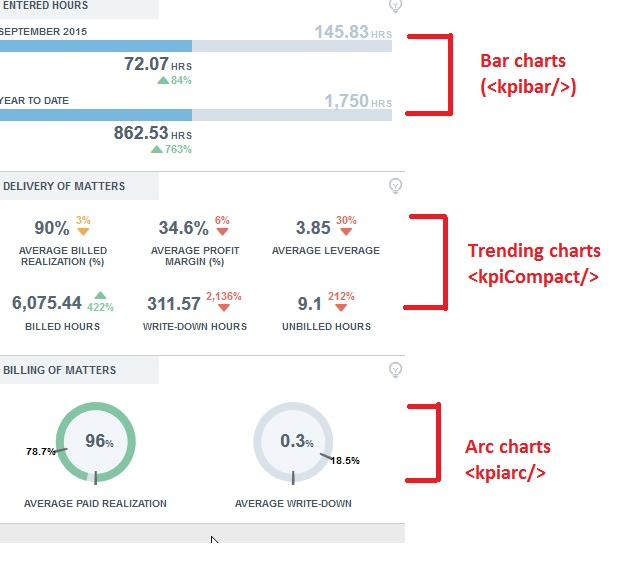
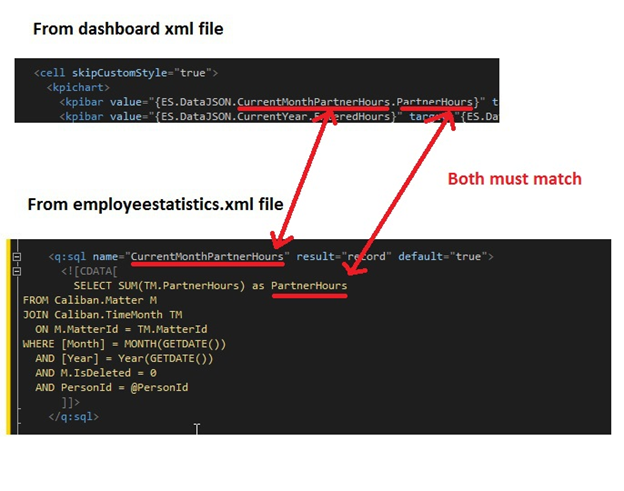
In the cell/kpichart, the value must reference the JSON that we updated in the EmployeeStatistics steps at the beginning. Below is an example of the format, and these two names must match the names in the EmployeeStatistics.xml file.